
How to Change Your Billing Cycle (Monthly ↔ Yearly)
Note:
- For information on how to cancel your subscription, please refer to the article How to Delete Your WeSendit® Account (Immediately or Scheduled)
Core Principles
Before changing your cycle, please keep these important rules in mind:
- End of Cycle: In most cases, the change will only take effect at the end of your current paid period.
- No Refunds: No partial refunds are granted for periods already paid if you switch to a shorter or cheaper cycle.
- Security: Due to compliance regulations (SCA/PSD2), you must re-confirm your credit card details when changing the billing mode.
Transition Scenarios
Switching from Monthly to Yearly
If you stay on the same plan (e.g., Pro Monthly ➔ Pro Yearly), your current month remains active. The switch to the annual fee occurs automatically on the first day after your current month expires. You will then benefit from a discount of approximately 20%.
Switching from Yearly to Monthly
Since the year has already been paid in advance, your plan remains active until the end of the annual term. The system will switch to monthly billing only on the official renewal date.
Immediate Upgrade with Cycle Change
If you switch to a higher plan at the same time (e.g., Basic Monthly ➔ Pro Yearly), the change takes effect immediately. The value of your unused days in the old plan is automatically credited towards the new annual fee (proration).
Step-by-Step Instructions
- Log in to your WeSendit® account.
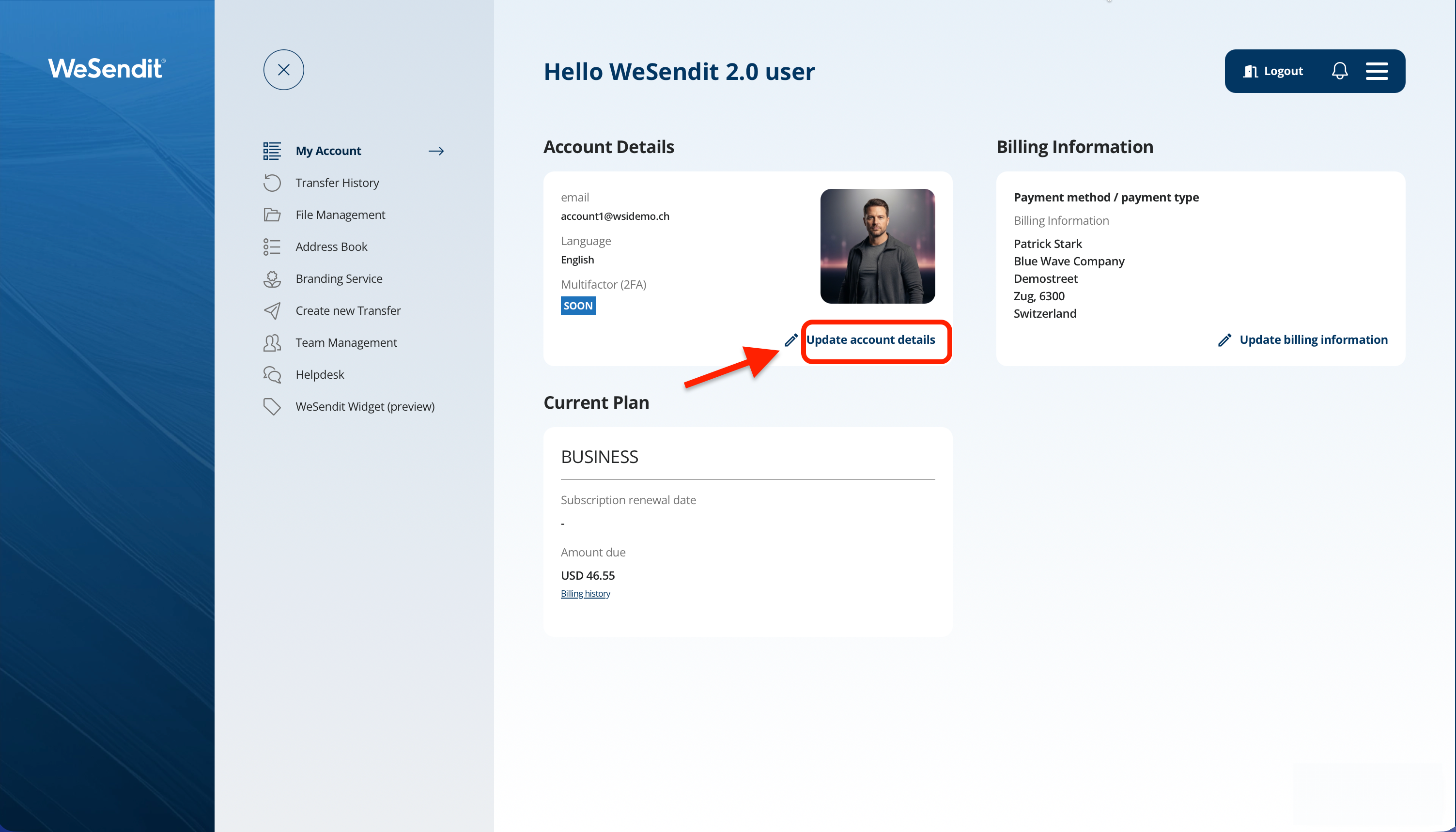
- Navigate to the "My Account" section and click on "Update account details".
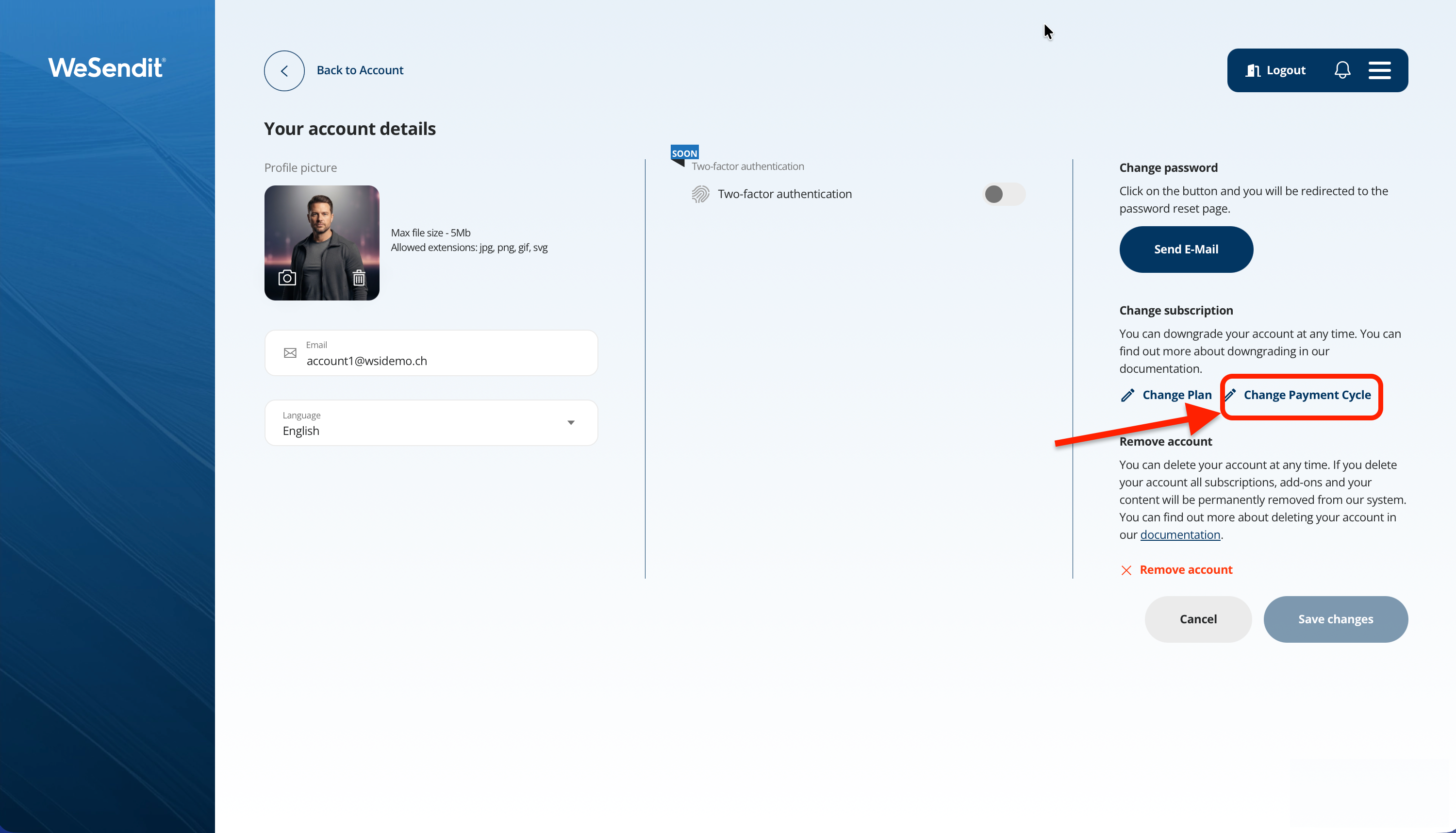
- In the "Change subscription" section, select the "Change billing cycle" option.
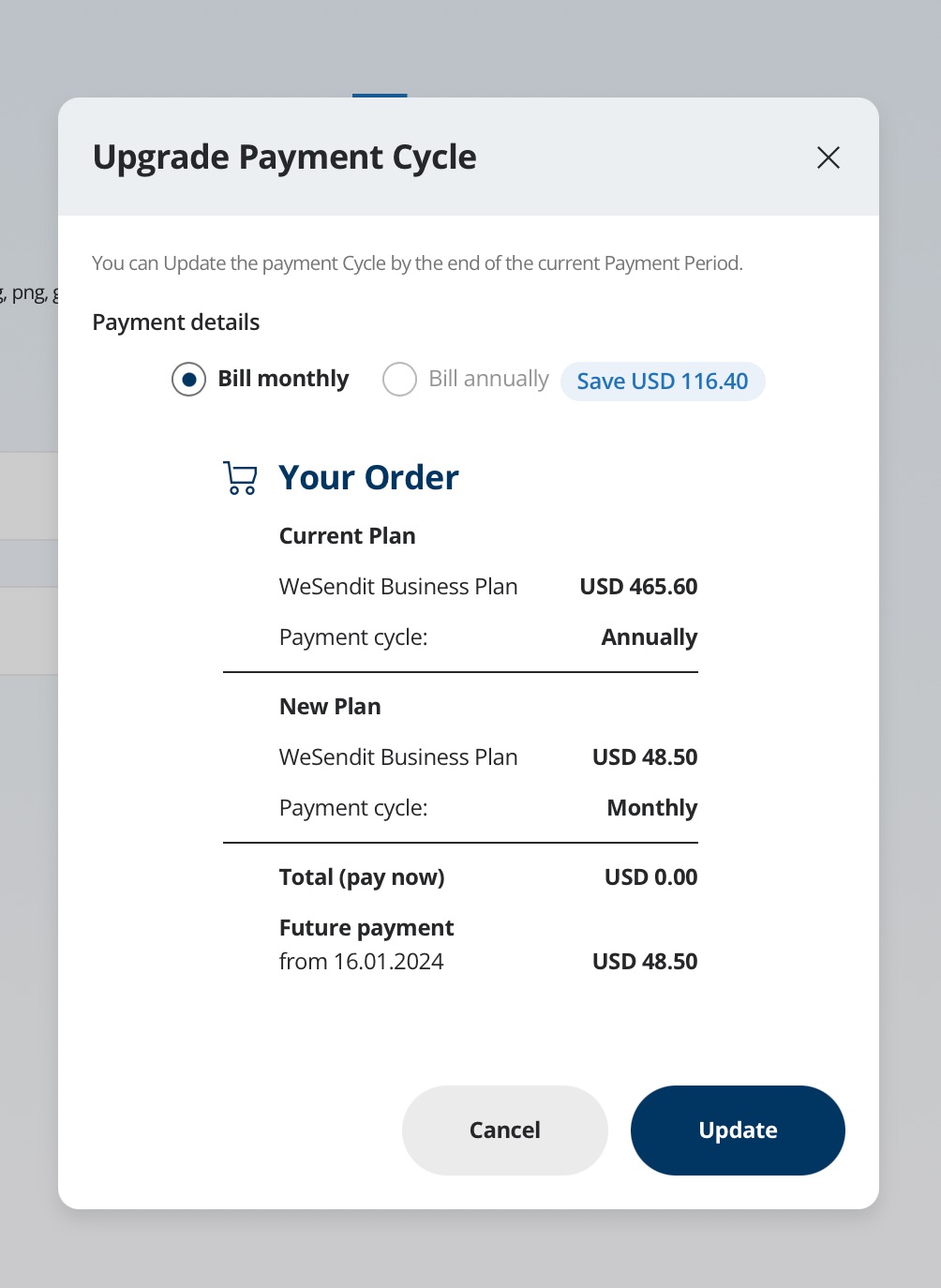
- A window will open showing the payment details. Here you can choose between "Monthly" and "Yearly".
- Note: The current cycle (Monthly or Yearly) is not selectable. You can only switch to the other rhythm in this window. If you wish to change the plan (tier) instead, select "Change plan" in the previous step.
- Note: The current cycle (Monthly or Yearly) is not selectable. You can only switch to the other rhythm in this window. If you wish to change the plan (tier) instead, select "Change plan" in the previous step.
- A security window (modal) will appear. Re-enter your credit card details here to validate the new payment token for the changed rhythm.
- After successful confirmation, you will receive an email with a summary of your planned or immediate change.
Tip: With annual payment, you not only save money but also reduce your administrative effort to a single invoice per year!
Still have questions?
Feeling a bit overwhelmed? That’s completely normal especially in the beginning. If anything remains unclear after browsing our Help Center, don’t hesitate to reach out. Our support team is always here to help you.