
Managing API Keys & Storage Connections
1. What is the "API Keys and Connection" Page?
The API Keys and Connection page is accessible via Settings in the left navigation. It's your central control panel for everything related to external data access.
Here you can:
- Create, view and manage all your storage connections
- Retrieve S3 credentials for external tools
- Configure access permissions and IP restrictions
- Delete connections that are no longer needed
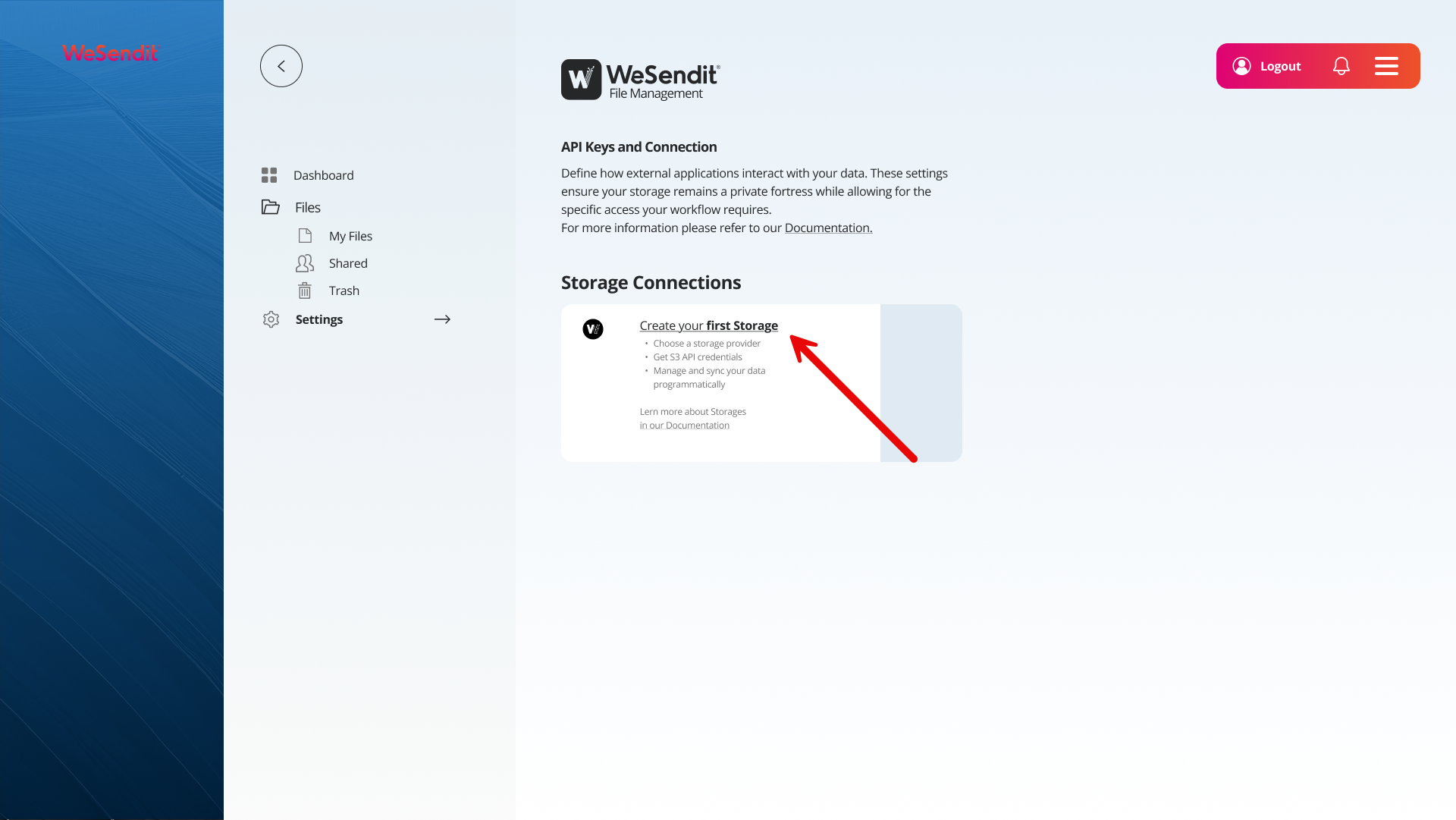
2. The Private Fortress Concept
WeSendit File Management follows the "Private Fortress" principle: your storage is fully secured by default no external access without explicit authorization.
This means:
- External applications have no access until you create and share S3 credentials
- You decide who can access your data (via credentials) and from where (via IP restrictions)
- Each storage can be configured individually — different tools receive different access rights
💡 The goal: Grant only as much access as a specific workflow actually requires. Nothing more, nothing less.
3. Storage Connections at a Glance
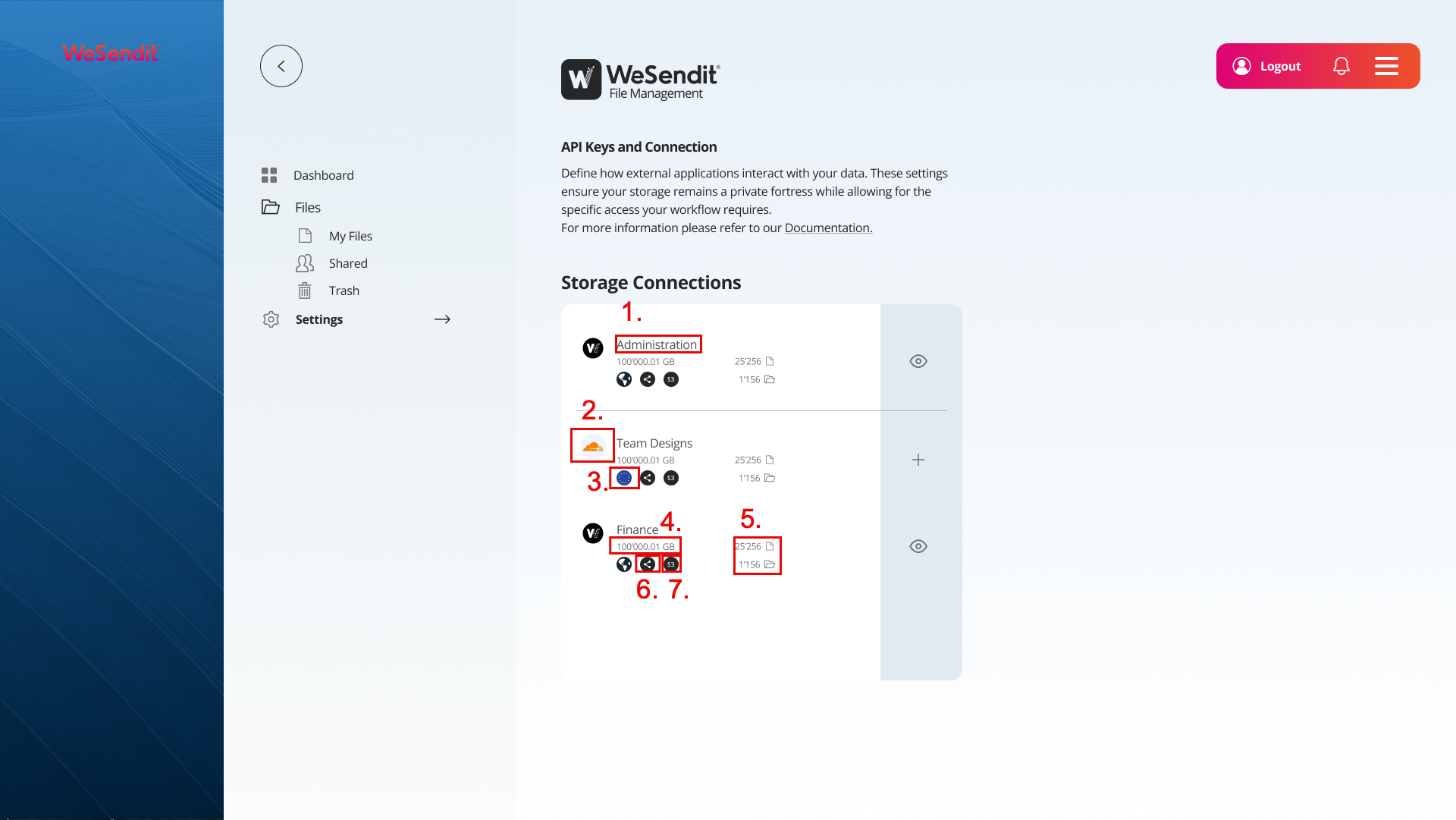
Under "Storage Connections", you can see all your configured storages in one place. The following metadata is displayed for each storage:
Metadata | Description |
|---|---|
1.Name | The name you chose for this storage |
2.Storage Provider | The provider in use (e.g. WeSendit, Cloudflare, AWS) |
3.Region | The server location of the storage |
4,Storage Space | Used vs. available storage |
5.Files & Folders | Number of stored items |
6.Share Status | Indicates whether the storage is shared |
7.S3 Connection | Shows whether S3 credentials are active |
4. Configuring Access Permissions
For each storage connection, you can define exactly what is permitted:
Permissions (Access Level)
Permission | What's allowed? |
|---|---|
Read Only | View and download files |
Write Only | Upload files, but not read them |
Read & Write | Full access: read, write, and sync |
IP Restrictions
You can limit access to specific IP addresses or networks. This is especially important when credentials are used by automated systems or servers.
→ Learn more in: IP Address Documentation – Securing Access via S3
5. Setting Up Workflow-Specific Connections
A common use case: different teams or processes need access to different storages with different permissions. WeSendit lets you map this cleanly.
Example Configurations
Administration
- Storage: Company-wide documents
- Permission: Read & Write
- IP restriction: Office IP only
Design Team
- Storage: Design assets and campaign materials
- Permission: Read & Write
- IP restriction: Design team's VPN exit
Finance
- Storage: Invoices and financial reports
- Permission: Read Only (for external accounting)
- IP restriction: Accountant's IP address
💡 Recommendation: Create a separate storage with a dedicated S3 credential set for each use case. This lets you grant access granularly and delete individual connections without affecting others.
6. Integrating External Tools and Custom Applications
Once you've created S3 credentials for a storage, you can integrate it with virtually any S3-compatible tool.
What You'll Need
You'll find all the necessary connection details in your storage settings:
- S3 Server Address – the endpoint of your storage
- S3 API Bucket Name – the unique name of your bucket
- Access Key – your public identification key
- Secret Key – your private key (only visible at creation – store it safely!)
Compatible Tools (Examples)
Tool / Platform | Use Case |
|---|---|
Rclone | File sync between cloud storages |
Cyberduck | Graphical S3 browser for Mac & Windows |
AWS CLI | Command-line access for developers |
Filezilla | FTP/S3 client for simple file transfers |
Custom App | S3-compatible API available in all major programming languages |
Example: Rclone Configuration
[wesendit-storage]
type = s3
provider = Other
access_key_id = YOUR_ACCESS_KEY
secret_access_key = YOUR_SECRET_KEY
endpoint = YOUR_S3_SERVER_ADDRESS
Add this configuration to your rclone.conf file to manage your WeSendit Storage directly from the command line.
7. Managing Connections
View / Edit a Connection
Click on a storage in the list to view its connection details and adjust settings such as permissions or IP restrictions.
Delete a Connection
You can permanently delete a connection via the context menu. This action is irreversible and immediately cuts off all external access.
→ Before deleting, make sure to read: Delete Connection – What Happens When You Remove a Connection?
Summary
I want to… | How to do it |
|---|---|
Connect a storage to an external tool | Retrieve S3 credentials in the storage settings |
Restrict access to specific IPs | Configure IP restrictions in the storage settings |
Give different teams different access rights | Create separate storages with dedicated credentials |
Safely end a connection | Review the checklist → delete the connection |
Renew credentials (e.g. after a security incident) | Generate new S3 credentials (key rotation) |
Related Articles
Still have questions?
Feeling a bit overwhelmed? That’s completely normal especially in the beginning. If anything remains unclear after browsing our Help Center, don’t hesitate to reach out. Our support team is always here to help you.