
S3 Data Management: Sync, Secret Key & Bucket Setup
1. The Credentials View After a Successful Connection
After your storage has been successfully connected, WeSendit shows you all important connection details one time only:
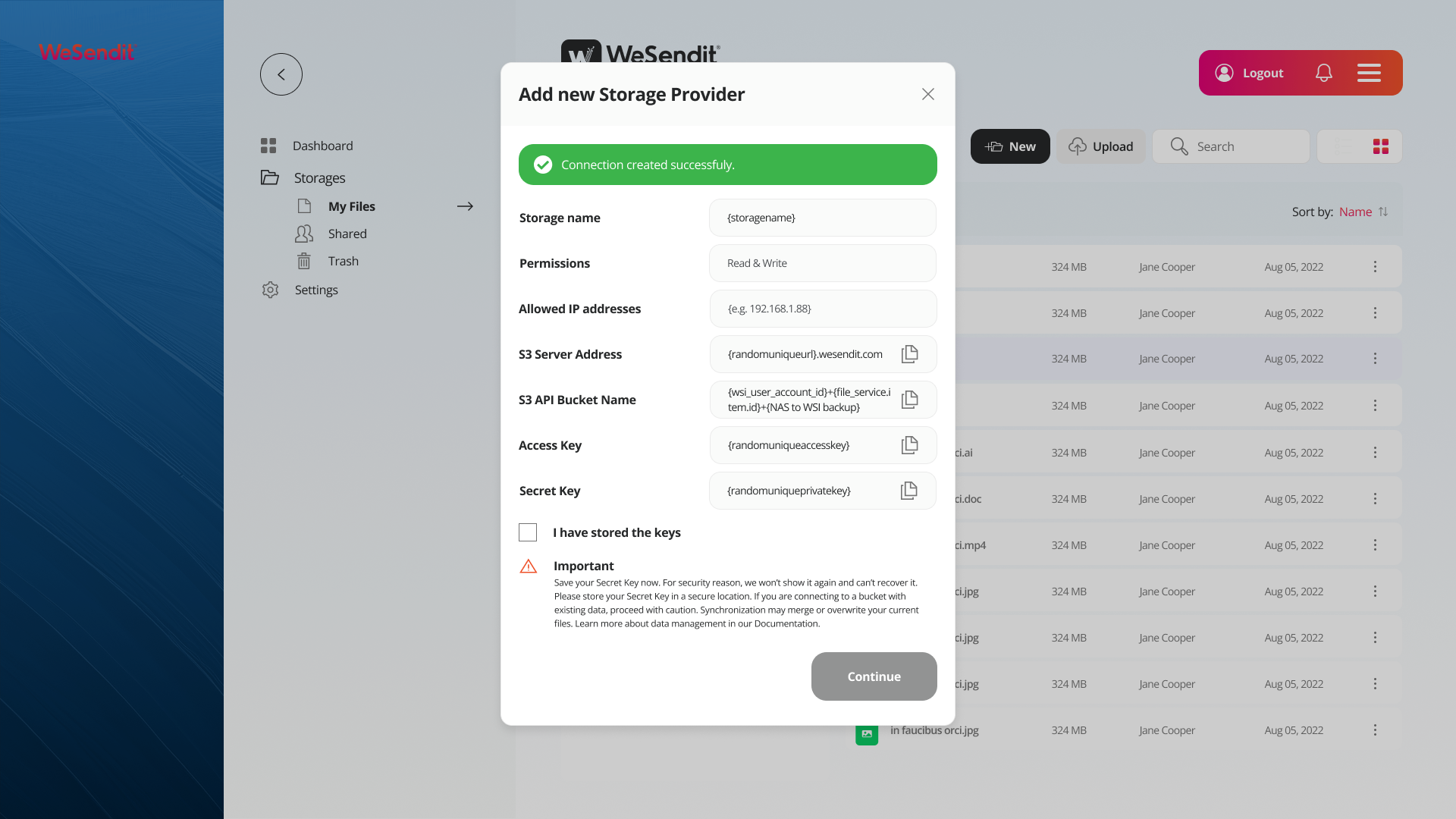
Field | Description |
|---|---|
Storage name | The name you chose for this storage |
Permissions | The configured access rights (e.g. Read & Write) |
Allowed IP addresses | The permitted IP addresses for S3 access |
S3 Server Address | The URL of your S3 endpoint |
S3 API Bucket Name | The unique name of your bucket in the storage system |
Access Key | Your public identification key |
Secret Key | Your private security key – only visible right now! |
2. Store Your Secret Key Safely – Act Now
Important: The Secret Key is shown to you only once. After closing this dialog, it can neither be viewed again nor recovered.
What You Need to Do Now
Before clicking "Continue", save your Secret Key in a secure location:
- Copy the Secret Key using the copy icon next to the field
- Save it in a password manager (e.g. 1Password, Bitwarden, KeePass)
- Alternatively: in an encrypted file or a secure internal system
- Check the box "I have stored the keys"
- Then click "Continue"
What happens if you lose the key? You'll need to generate new S3 credentials. Any existing connections using the old key (e.g. in external tools) will stop working and must be reconfigured.
Where You Should NOT Store Keys
- Unencrypted text files on your desktop
- Emails or chat messages
- Public documents or shared notebooks
- Code repositories (e.g. GitHub) — even private repos
3. Access Key vs. Secret Key – The Difference
Both keys always work as a pair, but they serve different roles:
| Access Key | Secret Key | |
|---|---|---|
Function | Identifies your account / storage | Authenticates and authorizes access |
Visibility | Can be viewed anytime in the settings | Only visible once at creation |
Analogy | Like a username | Like a password |
If lost | No problem — retrievable at any time | New credentials must be generated |
💡 Helpful reminder: The Access Key is public like an account number. Treat the Secret Key like a PIN — never share it, never store it unprotected.
4. The Bucket Name – What's Behind It?
The S3 API Bucket Name is the unique identifier of your storage space in the S3 system. It is automatically generated by WeSendit and follows a fixed pattern:
{wsi_user_account_id} + {file_service.item.id} + {label}Example:
usr-48291-itm-00384-nas-to-wsi-backupYou don't need to assign or change the bucket name yourself. It becomes important when you want to access your storage via external tools — simply enter this name as the bucket in your tool of choice.
5. Connecting to a Bucket With Existing Data
If you connect a storage to a bucket that already contains data, you should proceed with extra caution. The synchronization can affect existing files.
⚠️ Caution: Read this section carefully before proceeding.
What Can Happen?
Situation | Possible Behavior |
|---|---|
File in bucket, not in WeSendit | Will be made visible in WeSendit |
File in WeSendit, not in bucket | Will be written to the bucket |
File in both, same content | No change |
File in both, different content | Conflict – may be overwritten |
Recommended Steps Before Connecting
- Create a full backup of the existing bucket
- Make a note of which files are currently in the bucket
- Make sure no active uploads or transfers are running
- Only then connect the storage to WeSendit
6. Understanding Sync Behavior
WeSendit synchronizes the contents of your storage with the connected bucket. This means:
Merge
If different files exist on both sides, they are merged together. You will then see all files from both sources.
Overwrite
If files with the same name exist on both sides, the newer version or the one from WeSendit may overwrite the other.
💡 Recommendation: Start with an empty bucket if you want full control over the sync. This is the safest option when connecting for the first time.
7. Data Sync Strategies
Depending on your use case, there are different approaches:
Strategy 1: Fresh Start (recommended for new setups)
- Connect a new, empty bucket
- Upload files via WeSendit
- No conflicts possible
Strategy 2: Integrating Existing Data
- Create a backup of the bucket
- Connect the storage
- Review the sync result before making further changes
Strategy 3: External Write Access (for advanced users)
- Enter S3 credentials in an external tool (e.g. Rclone)
- Clearly define the sync direction in the external tool (e.g. upload only, no delete)
- WeSendit automatically displays the current bucket contents
8. Troubleshooting Data Conflicts
Files are missing after connecting → Check whether the correct bucket name was entered. Open the storage settings and compare the bucket name with the entry in your external tool.
Files were overwritten → Restore the backup you created before connecting. In the future: always back up first, then connect.
S3 connection fails → Check whether the Access Key and Secret Key are entered correctly. If the Secret Key has been lost, new credentials must be generated.
New files from an external S3 tool don't appear in WeSendit → Reload the view. WeSendit syncs the bucket contents when you open the storage — short delays are normal.
Related Articles
Still have questions?
Feeling a bit overwhelmed? That’s completely normal especially in the beginning. If anything remains unclear after browsing our Help Center, don’t hesitate to reach out. Our support team is always here to help you.